
diff options
| author | Yehonal <yehonal.azeroth@gmail.com> | 2022-11-08 01:39:16 +0100 |
|---|---|---|
| committer | GitHub <noreply@github.com> | 2022-11-08 01:39:16 +0100 |
| commit | d7a7450a173917147e4c616f626805dafd441ae4 (patch) | |
| tree | d5c4a2e571e5d653cb3fc2152c062b60dfced708 | |
| parent | 6b9d88f5980c48a0ed1acb4d6216b857604e9dd4 (diff) | |
| download | wiki-d7a7450a173917147e4c616f626805dafd441ae4.tar.gz wiki-d7a7450a173917147e4c616f626805dafd441ae4.tar.bz2 wiki-d7a7450a173917147e4c616f626805dafd441ae4.zip | |
feat: add docs to install-with-docker.md
| -rw-r--r-- | docs/install-with-docker.md | 124 |
1 files changed, 65 insertions, 59 deletions
diff --git a/docs/install-with-docker.md b/docs/install-with-docker.md index df5b839..85154a7 100644 --- a/docs/install-with-docker.md +++ b/docs/install-with-docker.md @@ -39,7 +39,7 @@ Before going further, make sure you have `docker` and `docker compose` installed docker --version ``` ``` -docker compose --version +docker compose version ``` You should see a similar output: @@ -109,12 +109,6 @@ If you need to run this in background, you can use the following command to run Open a new terminal and run the following command ``` -./acore.sh docker attach ac-worldserver -``` - -If you got error message `the input device is not a TTY. If you are using mintty, try prefixing the command with 'winpty'`, you may run the following command - -``` docker compose ps ``` @@ -126,15 +120,19 @@ azerothcore-wotlk_ac-database_1 docker-entrypoint.sh mysqld Up (healthy) azerothcore-wotlk_ac-worldserver_1 ./acore.sh run-worldserver Up 0.0.0.0:7878->7878/tcp,:::7878->7878/tcp, 0.0.0.0:8085->8085/tcp,:::8085->8085/tcp ``` -and then attach the worldserver name with winpty +and then attach the worldserver. E.g. ``` -winpty docker attach azerothcore-wotlk_ac-worldserver_1 +docker attach azerothcore-wotlk_ac-worldserver_1 ``` +If you got error message `the input device is not a TTY. If you are using mintty, try prefixing the command with 'winpty'` + This command will automatically attach your terminal to the worldserver console. Now you can run the `account create <user> <password>` command to [create your first in-game account.](creating-accounts.md) +**IMPORTANT**: **To detach**: press `ctr+p` and `ctrl+q`. Do **NOT** try to detach using `ctrl+c` or you will kill your worldserver process! + **5) Access database and update realmlist** To access your MySQL database we recommend clients like [HeidiSQL](https://www.heidisql.com/) (for Windows/Linux+Wine) or [SequelPro](https://www.sequelpro.com/) (for macOS). Use `root` as user and `127.0.0.1` as default host. @@ -186,11 +184,10 @@ A dev-container lets you use a Docker container as a full-featured development e Inside the azerothcore repo there's a pre-configured `devcontainer.json` that can be opened by using the VSCode command palette. To setup the Dev-Container follow these steps: -1. Copy the `docker-compose.override.yml` file from the /conf/dist folder to the root directory of the azerothcore repo. (needed until [this](https://github.com/microsoft/vscode-remote-release/issues/1080) will be solved) -2. [install and open VSCode](https://code.visualstudio.com/) -3. install the [remote-container](https://marketplace.visualstudio.com/items?itemName=ms-vscode-remote.remote-containers) extension -4. Open the azerothcore folder inside VSCode -5. Open the VSCode [command palette](https://code.visualstudio.com/docs/getstarted/userinterface#_command-palette) (Ctrl+Shift+P) and run: `>Remote-Containers: Reopen in Container` +1. [install and open VSCode](https://code.visualstudio.com/) +2. install the [remote-container](https://marketplace.visualstudio.com/items?itemName=ms-vscode-remote.remote-containers) extension +3. Open the azerothcore folder inside VSCode +4. Open the VSCode [command palette](https://code.visualstudio.com/docs/getstarted/userinterface#_command-palette) (Ctrl+Shift+P) and run: `>Remote-Containers: Reopen in Container` **IMPORTANT**: The dev-container also contains a pre-configured debugger action that allows you to use breakpoints and debug your worldserver. @@ -230,36 +227,6 @@ If the added module makes use of configurations files you'll have to place them After rebuilding you can [(re)start the containers](#how-can-i-start-stop-create-and-destroy-my-containers) again. -### Memory usage - -The total amount of RAM when running all AzerothCore docker containers is **less than 2 GB** with no players online. - -This is an example of a fresh, empty AzerothCore server running with Docker on macOS: - -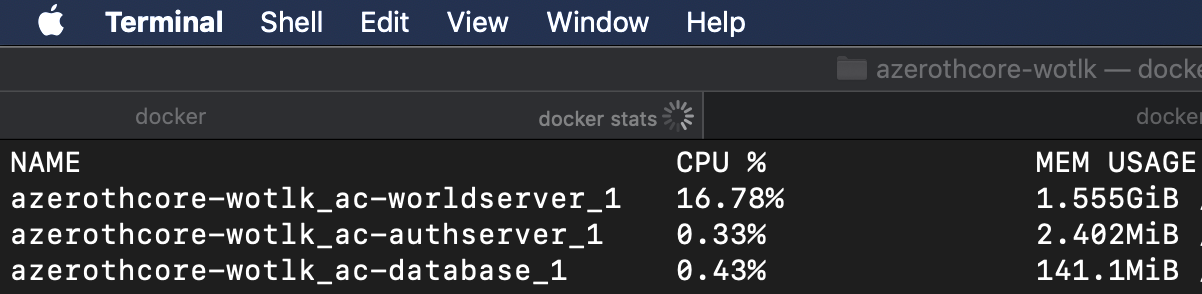 - -When used on GNU/Linux system, the amount of memory used by Docker is even less. - -### Docker containers vs Virtual machines - -Using Docker will have the same benefits as using virtual machines, but with much less overhead: - - - -_AzerothCore running on macOS with Docker_ - - -_AzerothCore running on Windows 10 with Docker_ - - -### Docker reference & support requests - -For server administrators, we recommend to read the [Docker documentation](https://docs.docker.com/) as well as the [Docker Compose reference](https://docs.docker.com/compose/reference/overview/). - -If you want to be an administrator of an AzerothCore production server, it helps if you master the basics of Docker usage. - -Feel free to ask questions on [StackOverflow](https://stackoverflow.com/) and link them in the **#support-docker** channel of our [Discord chat](https://stackoverflow.com/questions/tagged/azerothcore). We will be happy to help you! - ## FAQ ### Where are the etc and logs folders of my server? @@ -276,6 +243,8 @@ In the `.env` file you can configure: - the open ports - the MySQL root password +You can check all the configurations available in the `docker-compose.yml` file + Then your `docker compose up` will automatically locate the `.env` with your custom settings. ### How can I start, stop, create and destroy my containers? @@ -290,6 +259,30 @@ Then your `docker compose up` will automatically locate the `.env` with your cus - ⚠️ The `docker compose down --rmi all -v --remove-orphans` : command will stop, remove, and delete EVERYTHING. Including the volumes with the associated database ⚠️ +### How to deal with the permission issues + +#### [Linux] You must run docker without sudo + +It's very important to run Docker without using sudo or the root user when possible. To do that you must setup your current user to be part of the docker group. +Please, follow the official guide to configure it: [Post-installation steps for Linux](https://docs.docker.com/engine/install/linux-postinstall/) + +#### [Linux] the containers are running as root + +For simplicity, we run all the containers of the `azerothcore-wotlk` repo as root user to avoid permission issues while running them. +However, it means that you need to reset the user permissions of the files created by the containers on your host, you can easily do it by running this command + +```sudo chown -R $(id -u):$(id -g) .``` + +If you want to run your containers with a different user instead, you need to create an `.env` file in the root directory and set the following variables: + +``` +DOCKER_USER=acore +DOCKER_USER_ID=1000 +DOCKER_GROUP_ID=1000 +``` + +The USER_ID and the GROUP_ID must be aligned with the user of your host + ### How can I delete my database files? **Warning** Once you've deleted your database files they are unrecoverable unless you have a backup. @@ -300,31 +293,44 @@ After stopping and removing your containers you can proceed to remove the volume **Note** If you've changed your folder name from the default `azerothcore-wotlk` the volume name will be slightly different. To find the new volume name you can use the command `docker volume ls`. The volume should be labelled something along the lines of `xxxx_ac-database`. -### macOS optimizations (for dev server) +### Performance optimizations (for dev server) NOTE: If you are not experimenting any particular issues with I/O performance, we suggest to **NOT** use this configuration -The **osxfs** is well known to have [performance limitations](https://github.com/docker/for-mac/issues/1592), that's why we optimized the docker compose -file for the **osxfs** by using volumes and the "delegated" strategy. However, we also introduced an experimental feature to let you use named volumes instead of binded ones. -You can use this feature by setting this environment variable in your `.env` file: +The **osxfs** and the NTFS are well known to have [performance limitations](https://github.com/docker/for-mac/issues/1592) with docker binded volumes, we optimized the docker compose by using volumes and the "delegated/cached" strategy when possible, but that's not enough for some configurations. -`DOCKER_EXTENDS_BIND=abstract-no-bind` +* **Windows users:** we suggest to use the [WSL2](https://docs.docker.com/desktop/windows/wsl/) to clone our repo and work with docker. It has similar performance to a native linux environment -This will copy all the external sources in a persistent volume inside docker which means that, as a drawback, changes inside -the container won't be reflected outside (host) and vice-versa. +* **Mac users:** unfortunately there is not something similar to WSL2 on Mac, however, only the `ac-dev-server` uses binded src volumes that can cause such slowness. + If you still want to use the `ac-dev-server` under Mac, consider to try the [acore-docker one](https://www.azerothcore.org/acore-docker/#dev-server). It uses named volumes + that are way faster than the binded ones. -### How can I run commands in the worldserver console? +### Memory usage -Besides the usage of the `./acore.sh docker attach` command, you can use a manual approach if you encountered any problems. +The total amount of RAM when running all AzerothCore docker containers is **less than 2 GB** with no players online. -First of all, type `docker compose ps` to know the name of your worldserver container, it should be something like `azerothcore-wotlk_ac-worldserver_1`. +This is an example of a fresh, empty AzerothCore server running with Docker on macOS: -**To attach**: open a new terminal tab and type `docker attach azerothcore-wotlk_ac-worldserver_1` + -Note for Windows users: using git bash on Windows you have to prefix this command with `winpty`. Example: +When used on GNU/Linux system, the amount of memory used by Docker is even less. -`winpty docker attach azerothcore-wotlk_ac-worldserver_1` +### Docker containers vs Virtual machines -**To detach**: press `ctr+p` and `ctrl+q`. +Using Docker will have the same benefits as using virtual machines, but with much less overhead: -Do **NOT** try to detach using `ctrl+c` or you will kill your worldserver process! + + +_AzerothCore running on macOS with Docker_ + + +_AzerothCore running on Windows 10 with Docker_ + + +### Docker reference & support requests + +For server administrators, we recommend to read the [Docker documentation](https://docs.docker.com/) as well as the [Docker Compose reference](https://docs.docker.com/compose/reference/overview/). + +If you want to be an administrator of an AzerothCore production server, it helps if you master the basics of Docker usage. + +Feel free to ask questions on [StackOverflow](https://stackoverflow.com/) and link them in the **#support-docker** channel of our [Discord chat](https://stackoverflow.com/questions/tagged/azerothcore). We will be happy to help you! |