
diff options
| author | Kitzunu <24550914+Kitzunu@users.noreply.github.com> | 2021-06-12 14:50:58 +0200 |
|---|---|---|
| committer | GitHub <noreply@github.com> | 2021-06-12 14:50:58 +0200 |
| commit | f309cf79bbb032a0686b7d04feb8fec18e600a84 (patch) | |
| tree | 9ea7db08f0698ec9af213941307c83246c7b68a3 /docs/Install-with-Docker.md | |
| parent | b2610fad21012673061f5af786b022c96625cc26 (diff) | |
| download | wiki-f309cf79bbb032a0686b7d04feb8fec18e600a84.tar.gz wiki-f309cf79bbb032a0686b7d04feb8fec18e600a84.tar.bz2 wiki-f309cf79bbb032a0686b7d04feb8fec18e600a84.zip | |
chore: file naming standard (#517)
* A
* file naming standard
Fixes #491
* Revert "A"
This reverts commit 1c225fed753554098069597a2bbcbe08213b76a1.
* rename
* Revert "rename"
This reverts commit 65fd916faf8530ce258cc2b475c93971468680fe.
* Revert "file naming standard"
This reverts commit 6ca5a703a9e9d59f9c773029e4c04bfd012b6abb.
* bye
* Hi
* Create the-staging-branch.md
* 1
* Delete how-to-create-a-PR.md
* Create how-to-create-a-pr.md
* werafgt
* Update the-modular-structure.md
* wef
Diffstat (limited to 'docs/Install-with-Docker.md')
| -rw-r--r-- | docs/Install-with-Docker.md | 309 |
1 files changed, 0 insertions, 309 deletions
diff --git a/docs/Install-with-Docker.md b/docs/Install-with-Docker.md deleted file mode 100644 index 1c01a3f..0000000 --- a/docs/Install-with-Docker.md +++ /dev/null @@ -1,309 +0,0 @@ ---- -tableofcontents: 1 ---- - -# Install with Docker - -Welcome to the AzerothCore Docker guide! - -## Introduction - -Installing AzerothCore using Docker is a simplified procedure that has several benefits: - -- It's very easy! Docker will do all the dirty work for you. -- It can be done in all operating systems where Docker is available (including **Windows**, **GNU/Linux**, **macOS**) -- You don't need to install many dependencies (forget about _visual studio_, _cmake_, _mysql_, etc.. they are **NOT** required) -- Forget about platform-specific bugs. When using Docker, AzerothCore will always run in **Linux-mode**. -- There are many other [benefits when using Docker](https://www.google.com/search?q=docker+benefits) - -## Setup - -### Software requirements - -The only requirements are [git](https://git-scm.com/download/) and Docker. - -#### New Operating Systems [recommended]: -- For GNU/Linux install [Docker](https://docs.docker.com/install/linux/docker-ce/ubuntu) and [Docker Compose](https://docs.docker.com/compose/install/) -- For macOS 10.12+ Sierra and newer version install [Docker Desktop for Mac](https://hub.docker.com/editions/community/docker-ce-desktop-mac) -- For Windows 10 install [Docker Desktop for Windows](https://hub.docker.com/editions/community/docker-ce-desktop-windows) - -#### Old Operating Systems [not tested]: -- For macOS older than 10.11 El Capitan and older install [Docker Toolbox for Mac](https://docs.docker.com/toolbox/toolbox_install_mac/) -- For Windows 7/8/8.1 install [Docker Toolbox for Windows](https://docs.docker.com/toolbox/toolbox_install_windows/) - - -Before going further, make sure you have `docker` and `docker-compose` installed in your system by typing in a terminal: - -``` -docker --version -``` -``` -docker-compose --version -``` - -You should see a similar output: - -``` -Docker version 20.10.5, build 55c4c88 -docker-compose version 1.28.2, build 67630359 -``` - -**Note for Windows users**: you can use **git-bash** (the shell included in git) as a terminal. - -### Clone the AzerothCore repository - -You need to clone the AzerothCore repository (or use your own fork): - -``` -git clone https://github.com/azerothcore/azerothcore-wotlk.git -``` - -Now go into the main directory using `cd azerothcore-wotlk`. **All commands will have to be run inside this folder**. - -### Installation - -Inside your terminal (if you use Windows, use git bash), run the following commands inside the azerothcore-wotlk folder - -NOTE: the following procedure uses our acore.sh dashboard, however, these commands are a shortcut of the docker-compose ones. - you can check the docker-compose commands used in background by running `./acore.sh docker --help` and read the description of each command - -**1) Download the client data:** - -``` -./acore.sh docker client-data -``` - -NOTE: This command should be executed only at the first installation and when there's a new version of the client-data available - -**2) Compile AzerothCore:** -``` -./acore.sh docker build -``` -It will build docker images, compile the core and import needed SQL files automatically! -This may take a while. Meanwhile you can go and drink a glass of wine :wine_glass: - -**NOTE For dev:** if you are working with code and you need a fast way to compile your binaries, the command above -can be a bit overkill for you because you probably do not need to rebuild images or import SQL if you have not changed them. -Therefore, we suggest to use one of the following solution instead: - -* `./acore.sh docker build:compiler` it only builds the dev image and compiles the sources without importing sql. -* `./acore.sh docker dev:build` it's similar to the previous command, but it uses the dev-container which uses volumes instead of the container. It can be faster on some configurations. - -**3) Run the containers** - -``` -./acore.sh docker start:app -``` - -**Congratulations! Now you have an up and running azerothcore server! Continue to the next step to create an account** - -If you need to run this in background, you can use the following command to run the docker-compose detached mode: - -``` -./acore.sh docker start:app:d -``` - -**4) Access the worldserver console** - -Open a new terminal and run the following command - -``` -./acore.sh docker attach ac-worldserver -``` - -This command will automatically attach your terminal to the worldserver console. -Now you can run the `account create <user> <password>` command to [create your first in-game account.](Creating-Accounts.md) - -**5) Access database and update realmlist** - -To access your MySQL database we recommend clients like [HeidiSQL](https://www.heidisql.com/) (for Windows/Linux+Wine) or [SequelPro](https://www.sequelpro.com/) (for macOS). Use `root` as user and `127.0.0.1` as default host. -The default password of the root DB user will be `password`. - -Unless your server installation is on the same network as your client, you might want to update the `realmlist` address in the `acore_auth` database with your server public IP address : -```sql -USE acore_auth; -SELECT * FROM realmlist; -UPDATE realmlist SET address='<SERVER PUBLIC IP ADDRESS>'; -``` - -### How to keep your AzerothCore updated with the latest changes - -First of all, you just need to use the `git` tool to update your repository by running the following common command: - -`git pull origin master` : this will download latest commits from the azerothcore repository - -Then you can just run the following command: - -`./acore.sh docker build`: to rebuild the images and generate new binaries. Moreover, it will also import latest database changes. - -NOTE: We do not update so often the client data, but when it happens you can run the following command: - -`./acore.sh client-data`: it will download the new version of the client data if there's a new version available - -### How to run the worldserver with GDB - -Running the server with GDB allows you to generate a crashdump if the server crashes. The crashdump file is useful for developers to understand which lines are failing and possibly fix it. - -**Keep in mind that you should compile your code with one of the following compilation types: Debug or RelWithDebInfo, otherwise GDB won't work properly** - -To enable GDB the steps are the following: - -1. Create a `config.sh` file under the `/conf/` directory of the azerothcore-wotlk repository -2. Add this configuration inside: `AC_RESTARTER_WITHGDB=true`. It will configure the restarter used by our docker services to use GDB instead of the binaries directly -3. Restart your containers and that's it! - -If the server crashes, you will find the crashdump file (`gdb.txt`) within the `/env/docker` folder - -### How to use the dev-container - -Within our docker-compose you can find the `ac-dev-server` service -This service is used for our build and db operations, but it can also be used -by you to develop with the [VSCode Remote Docker extension](https://code.visualstudio.com/docs/remote/containers) - -A dev-container lets you use a Docker container as a full-featured development environment. The **.devcontainer** folder in our project contains files to tell VS Code how to access (or create) a development container with all the needed tools. This container will run the AzerothCore with all the software and the configurations needed for working with our codebase and debugging the server. - -Inside the azerothcore repo there's a pre-configured `devcontainer.json` that can be opened by using the VSCode command palette. -To setup the Dev-Container follow these steps: - -1. Copy the `docker-compose.override.yml` file from the /conf/dist folder to the root directory of the azerothcore repo. (needed until [this](https://github.com/microsoft/vscode-remote-release/issues/1080) will be solved) -2. [install and open VSCode](https://code.visualstudio.com/) -3. install the [remote-container](https://marketplace.visualstudio.com/items?itemName=ms-vscode-remote.remote-containers) extension -4. Open the azerothcore folder inside VSCode -5. Open the VSCode [command palette](https://code.visualstudio.com/docs/getstarted/userinterface#_command-palette) (Ctrl+Shift+P) and run: `>Remote-Containers: Reopen in Container` - -**IMPORTANT**: The dev-container also contains a pre-configured debugger action that allows you to use breakpoints and debug your worldserver. - -Do not forget that you need to [Remote Container extension](https://marketplace.visualstudio.com/items?itemName=ms-vscode-remote.remote-containers) -installed in your [Visual Studio Code](https://code.visualstudio.com/) IDE - -#### How to debug your code with the dev-container - -NOTE: **Keep in mind that you should compile your code with the Debug mode, otherwise the debugger won't work properly** - -Once inside the VSCode dev-container you can go to the debug session and use the `Linux/Docker debug` action as you can see in this image: - -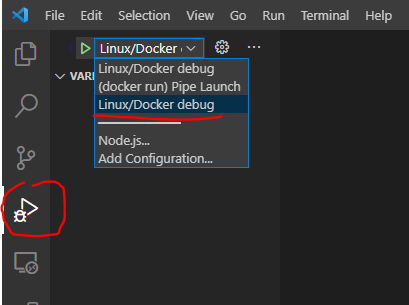 - -It will run a worldserver in debug mode and then you can start placing breakpoints in your code to debug it. - -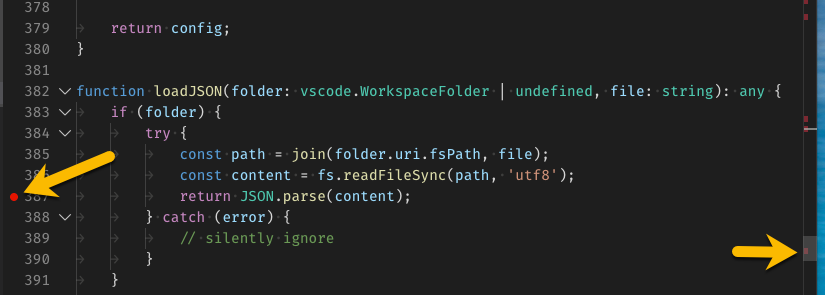 - -For more info about how to debug in vscode you can refer to the [official guide](https://code.visualstudio.com/docs/editor/debugging) - -### How to create a second realm with docker-compose - -To create a second realm we suggest you to take a look at the example available within the http://github.com/azerothcore/acore-docker repository. - -## More info - -### Adding Modules - -To add a module simply place the module directory inside of the `/azerothcore-wotlk/modules` directory. - -After adding a module you'll have to rebuild azerothcore: -``` -./acore.sh docker build -``` - -If the added module makes use of configurations files you'll have to place them in the `azerothcore-wotlk/env/docker/etc/modules` directory. If this modules directory doesn't exist, you'll have to manually create it yourself. - -After rebuilding you can [(re)start the containers](#how-can-i-start-stop-create-and-destroy-my-containers) again. - -### Memory usage - -The total amount of RAM when running all AzerothCore docker containers is **less than 2 GB** with no players online. - -This is an example of a fresh, empty AzerothCore server running with Docker on macOS: - -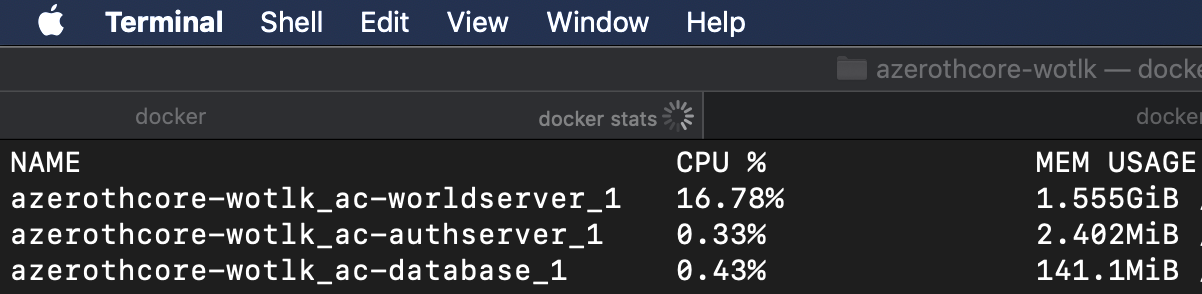 - -When used on GNU/Linux system, the amount of memory used by Docker is even less. - -### Docker containers vs Virtual machines - -Using Docker will have the same benefits as using virtual machines, but with much less overhead: - - - -_AzerothCore running on macOS with Docker_ - - -_AzerothCore running on Windows 10 with Docker_ - - -### Docker reference & support requests - -For server administrators, we recommend to read the [Docker documentation](https://docs.docker.com/) as well as the [Docker Compose reference](https://docs.docker.com/compose/reference/overview/). - -If you want to be an administrator of an AzerothCore production server, it helps if you master the basics of Docker usage. - -Feel free to ask questions on [StackOverflow](https://stackoverflow.com/) and link them in the **#support-docker** channel of our [Discord chat](https://stackoverflow.com/questions/tagged/azerothcore). We will be happy to help you! - -## FAQ - -### Where are the etc and logs folders of my server? - -By default they are located in `env/docker/authserver/` and `env/docker/worldserver/`. - -### How can I change the docker containers configuration? - -You can copy the file `/conf/dist/.env.docker` to `.env` and place it in the root folder of the project, then edit it according to your needs. - -In the `.env` file you can configure: - -- the location of the `data`, `etc` and `logs` folders -- the open ports -- the MySQL root password - -Then your `docker-compose up` will automatically locate the `.env` with your custom settings. - -### How can I start, stop, create and destroy my containers? - -- The `docker-compose start --profile app start` will start your existing app containers in detached mode. - -- The `docker-compose stop` will stop your containers, but it won't remove them. - -- The `docker-compose --profile app up` builds, (re)creates, and starts your app services. - -- The `docker-compose down` command will stop your containers, but it also removes the stopped containers as well as any networks that were created. - -- ⚠️ The `docker-compose down --rmi all -v` : command will stop, remove, and delete EVERYTHING. Including the volumes with the associated database ⚠️ - -### How can I delete my database files? - -**Warning** Once you've deleted your database files they are unrecoverable unless you have a backup. - -To remove your database files you firstly want to make sure that your containers have been stopped and removed by typing: `docker-compose down`. - -After stopping and removing your containers you can proceed to remove the volume by typing: `docker volume rm azerothcore-wotlk_ac-database` - -**Note** If you've changed your folder name from the default `azerothcore-wotlk` the volume name will be slightly different. To find the new volume name you can use the command `docker volume ls`. The volume should be labelled something along the lines of `xxxx_ac-database`. - -### macOS optimizations (for dev server) - -The **osxfs** is well known to have [performance limitations](https://github.com/docker/for-mac/issues/1592), that's why we optimized the docker-compose -file for the **osxfs** by using volumes and the "delegated" strategy. However, we also introduced an experimental feature to let you use named volumes instead of binded ones. -You can use this feature by setting this environment variable in your `.env` file: - -`DOCKER_EXTENDS_BIND=abstract-no-bind` - -This will copy all the external sources in a persistent volume inside docker which means that, as a drawback, changes inside -the container won't be reflected outside (host) and vice-versa. - -NOTE: If you are not experimenting any particular issues with I/O performance, we suggest to **NOT** use this configuration - -### How can I run commands in the worldserver console? - -Besides the usage of the `./acore.sh docker attach` command, you can use a manual approach if you encountered any problems. - -First of all, type `docker-compose ps` to know the name of your worldserver container, it should be something like `azerothcore-wotlk_ac-worldserver_1`. - -**To attach**: open a new terminal tab and type `docker attach azerothcore-wotlk_ac-worldserver_1` - -Note for Windows users: using git bash on Windows you have to prefix this command with `winpty`. Example: - -`winpty docker attach azerothcore-wotlk_ac-worldserver_1` - -**To detach**: press `ctr+p` and `ctrl+q`. - -Do **NOT** try to detach using `ctrl+c` or you will kill your worldserver process! |