1
2
3
4
5
6
7
8
9
10
11
12
13
14
15
16
17
18
19
20
21
22
23
24
25
26
27
28
29
30
31
32
33
34
35
36
37
38
39
40
41
42
43
44
45
46
47
48
49
50
51
52
53
54
55
56
57
58
59
60
61
62
63
64
65
66
67
68
69
70
71
72
73
74
75
76
77
78
79
80
81
82
83
84
85
86
87
88
89
90
91
92
93
94
95
96
97
98
99
100
101
102
103
104
105
106
107
108
109
110
111
112
113
114
115
116
117
118
119
120
121
122
123
124
125
126
127
128
129
130
131
132
133
134
135
136
137
138
139
140
141
142
143
144
145
146
147
148
149
150
151
152
153
154
155
156
157
158
159
160
161
162
163
164
165
166
167
168
169
170
171
172
173
174
175
176
177
178
179
180
181
182
183
184
185
186
187
188
189
190
191
192
193
194
195
196
197
198
199
200
201
202
203
204
205
206
207
208
209
210
211
212
213
214
|
# How to create a PR
### 1. Create a fork of AzerothCore
You need to be signed on [github.com](https://github.com/). If you don't have an account yet, create one.
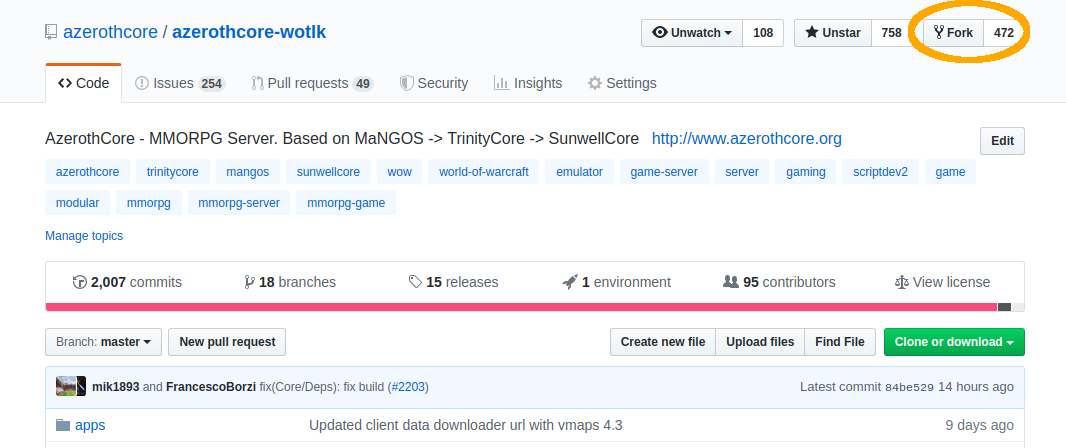
Open the [AzerothCore repository](https://github.com/azerothcore/azerothcore-wotlk)
and create a fork of it by clicking in the top-right "Fork" button:
### 2. Clone your fork to your local machine
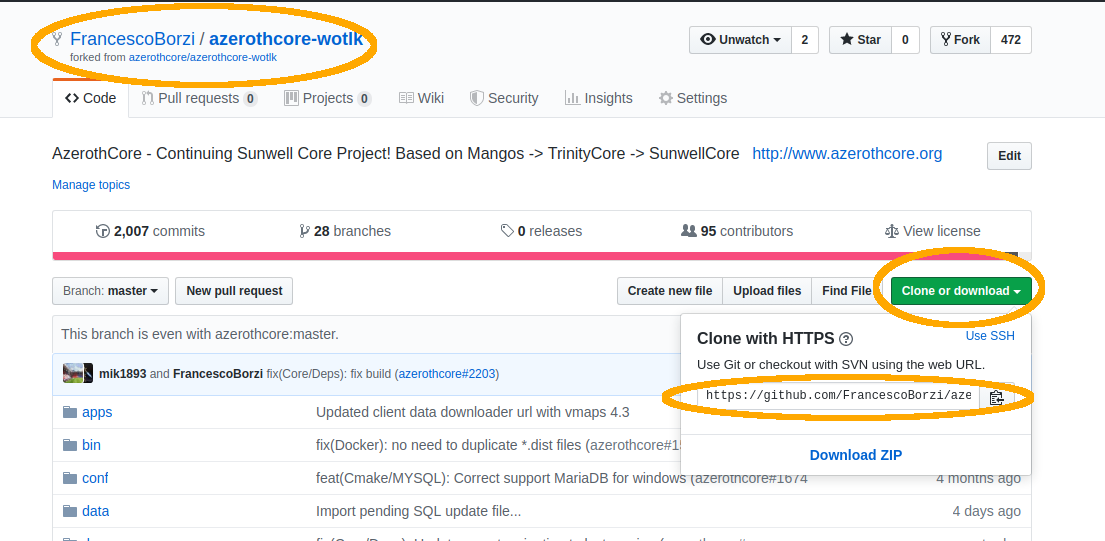
Once your fork is ready, you will see a screen showing **YourUsername/azerothcore-wotlk**.
Click on the "Clone or download" button (on the right) and copy the https address of your fork:
Now open the **terminal** (if you are on Windows, use the [git bash terminal](https://git-scm.com/downloads))
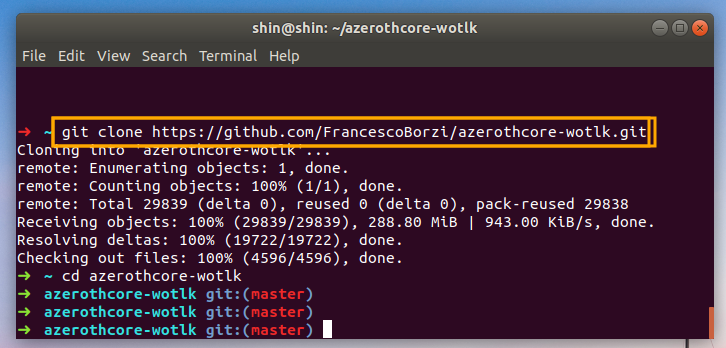
and type `git clone ` followed by the git address of your fork that you just copied:

```
git clone https://github.com/YourUsername/azerothcore-wotlk.git
```
Wait until the download ends and then access the `azerothcore-wotlk` directory:
```
cd azerothcore-wotlk
```
### 3. Create a new branch
**IMPORTANT:** never commit changes your `master` branch, it will make your fork messy.
When creating a new branch, git will create a copy of your **current** branch.
Always make sure you are on `master` branch **before** creating a new branch by typing:
```
git checkout master
```
Create a new branch giving it a name that is different than any existing branch.
You can give any name you want (replace "xxx" with whatever you are fixing):
```
git checkout -b fix-issue-xxxx
```

### 4. Add your C++ changes (if any)
If you don't have any C++ changes, you can skip this. Otherwise, open your editor and do them now! I'll wait...
In this guide we will assume that you modified the file `instance_deadmines.cpp`
Now add your file(s) to be committed:
```
git add src/server/scripts/EasternKingdoms/Deadmines/instance_deadmines.cpp
```
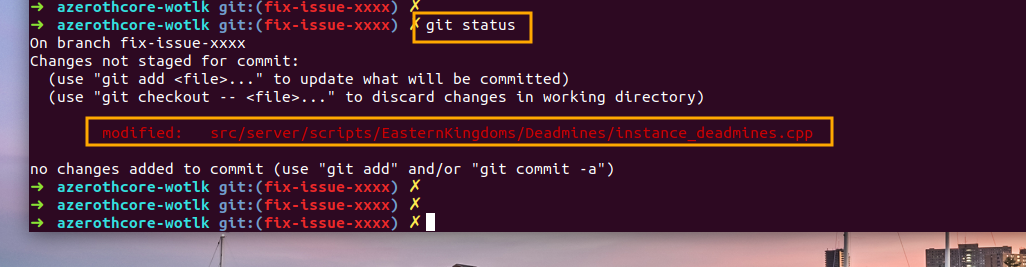
If you modified more files, just add them using `git add path/to/file`
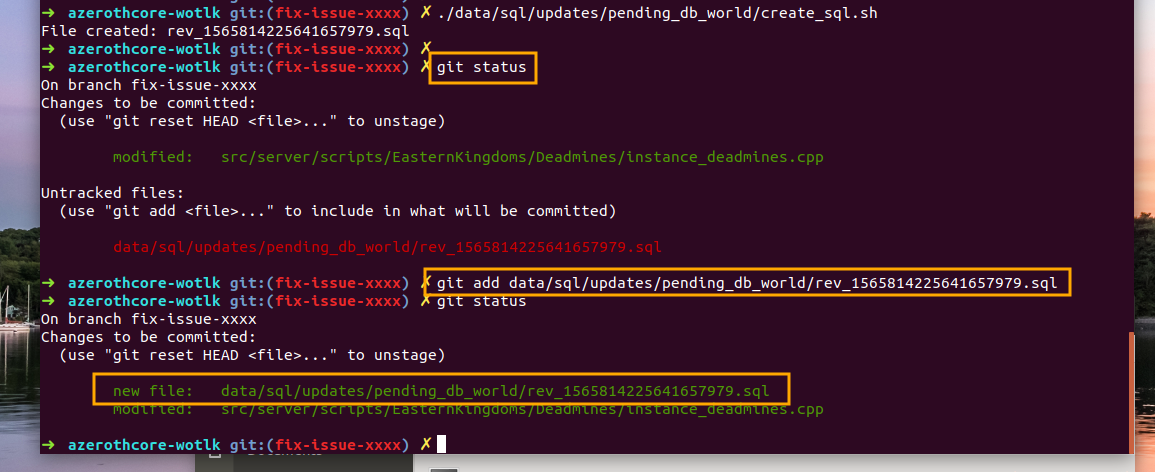
You can use the `git status` command to check which files have been selected to be committed:

### 5. Add your SQL changes (if any)
If you don't have any SQL changes, you can skip this. Otherwise, run the following:
```
./data/sql/updates/pending_db_world/create_sql.sh
```
This will generate a new file located at `data/sql/updates/pending_db_world`
having a unique name that looks like `rev_XXXXXXXXXXXX.sql`
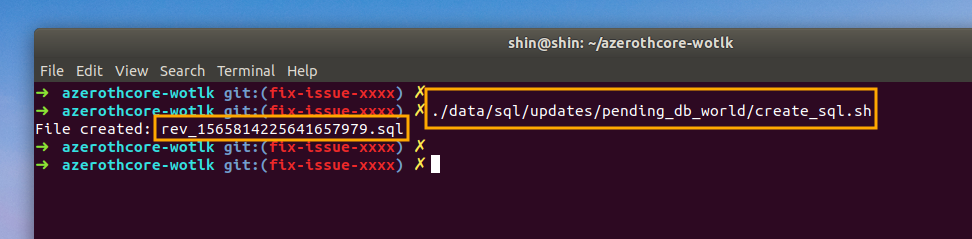
Open it with a text editor. You will notice that it contains some SQL code like:
```
INSERT INTO `version_db_world` (`sql_rev`) VALUES ('XXXXXXXXXXXX');
```
Do NOT remove this line. Add your SQL code below and save it.
Now add this file to be committed using the `git add path/to/file` command:
```
git add data/sql/updates/pending_db_world/rev_XXXXXXXXXXXX.sql
```
(of course replace `rev_XXXXXXXXXXXX.sql` with the actual name of the file)
### 6. Commit & Push your changes
First of all make sure to use the AC commit template (this should only be necessary once):
```
git config --local commit.template ".git_commit_template.txt"
```
Then commit your changes using:
```
git commit
```
You are then prompted to specify an appropriate commit message (please follow the format guidelines here).
Now it's time to push them remotely.
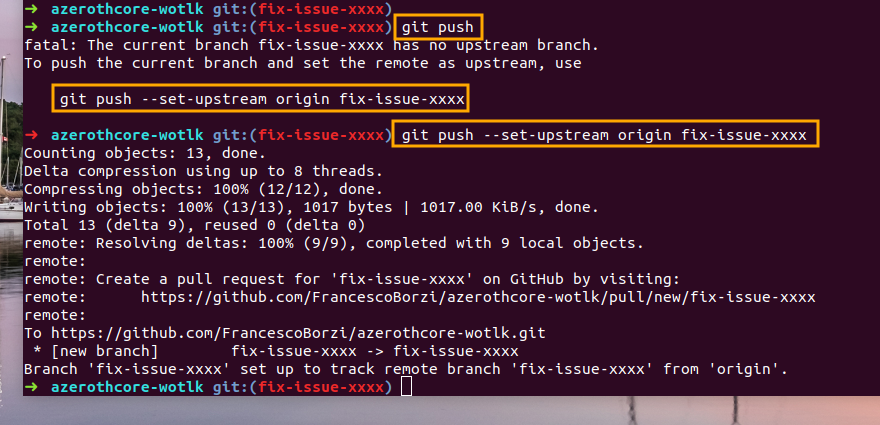
If you use the `git push` command for the first time in this branch,
git will ask to specify which remote branch you want to push to.
So you should give:
```
git push --set-upstream origin fix-issue-xxxx
```
(of course replace `fix-issue-xxxx` with the actual name of your branch)
### 7. Open the PR
Go back to the [main AzerothCore repository](https://github.com/azerothcore/azerothcore-wotlk),
you will notice that GitHub is smart enough to realize that you are about to open a PR
and shows this nice light-yellow box:
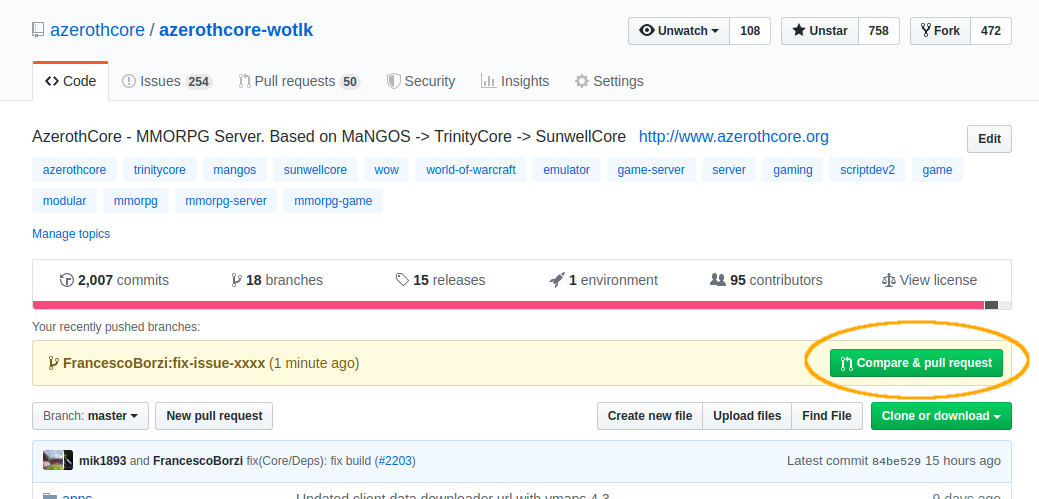
click on the "Compare & pull request" green button (located on the right).
Now fill the PR template following the instructions that will appear in the screen,
do not forget to add the **testing instructions** so people can be able to test your PR and it can be merged:
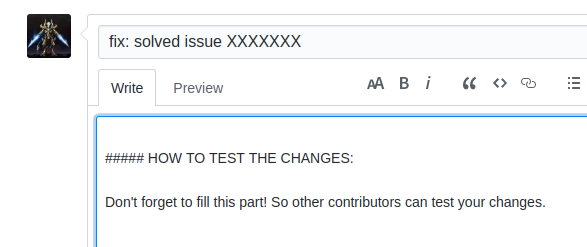
It's also a good practice to check the "File changes" tab to see that everything is in place as you expect:

That's it!
## FAQ
### There is something wrong or missing in the file changes, I want to push more changes
Just edit/add the files that you want, `git add` them, then commit & push again.
If you refresh your PR's page you will see the changes.
### I've already created a PR, what should I do to create another one?
Just repeat the procedure starting from the step 3.
Be careful when creating a new branch: you **must** be in branch `master` first (type `git checkout master`).
### Wow can I update my fork's master branch?
If you never updated your fork before, type:
```
git remote add upstream https://github.com/azerothcore/azerothcore-wotlk.git
```
Then follow these steps:
1) `git checkout master`
2) `git fetch upstream`
3) `git merge upstream/master`
4) `git push origin master`
Your fork is now updated.
### How can I update my branch with latest master?
You have to update your fork's master branch first (see above).
Then just `git checkout your-branch` and `git merge master`.
### How much time does it take for my PR to be reviewed, tested and merged?
This is an open source project and people work in their free time, so we cannot estimate it.
What we can recommend is: write **clear** instructions to test your PR, so it will be easy for anyone to test it.
If your test instructions are not clear or missing at all,
only advanced users will be able to test your PR and it will take much more time.
### What terminal was used in this tutorial?
https://github.com/robbyrussell/oh-my-zsh
But any linux/mac terminal is ok too.
If you are so unlucky to be on windows, use [git bash](https://git-scm.com/downloads).
|
