1
2
3
4
5
6
7
8
9
10
11
12
13
14
15
16
17
18
19
20
21
22
23
24
25
26
27
28
29
30
31
32
33
34
35
36
37
38
39
40
41
42
43
44
45
46
47
48
49
50
51
52
53
54
55
56
57
58
59
60
61
62
63
64
65
66
67
68
69
70
71
72
73
74
75
76
77
78
79
80
81
82
83
84
85
86
87
88
89
90
91
92
93
94
95
96
97
98
99
100
101
102
103
104
105
106
107
108
109
110
111
112
113
114
115
116
117
118
119
120
121
122
123
124
125
126
127
128
129
130
131
132
133
134
135
136
137
138
139
140
141
142
143
144
145
146
147
148
149
150
151
152
153
154
155
156
157
158
159
160
161
162
163
164
165
166
|
Welcome to the AzerothCore Docker guide!
## Introduction
Installing AzerothCore using Docker is a simplified procedure that has several benefits:
- It's very easy! Docker will do all the dirty work for you.
- It can be done in all operating systems where Docker is available (including **Windows**, **GNU/Linux**, **macOS**)
- You don't need to install many dependencies (forget about _visual studio_, _cmake_, _mysql_, etc.. they are **NOT** required)
- Forget about platform-specific bugs. When using Docker, AzerothCore will always run in **Linux-mode**.
- There are many other [benefits when using Docker](https://www.google.com/search?q=docker+benefits)
_AzerothCore running on macOS with Docker_

_AzerothCore running on Windows 10 with Docker_

#### Memory usage
The total amount of RAM when running all AzerothCore docker containers is **less than 2 GB** with no players online.
This is an example of a fresh, empty AzerothCore server running with Docker on macOS:
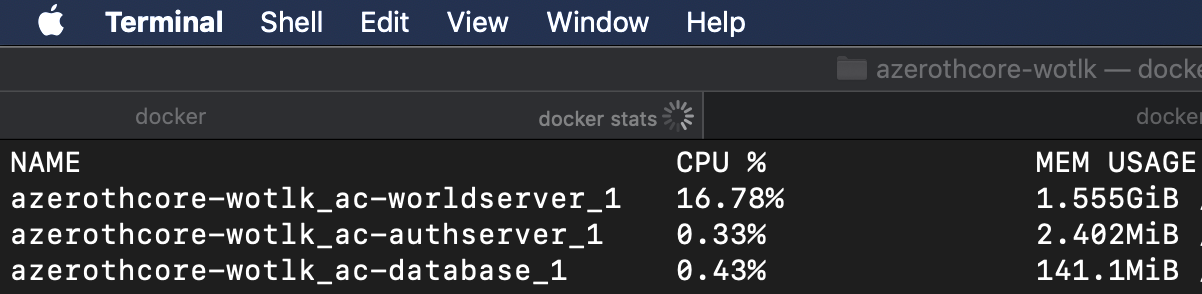
When used on GNU/Linux system, the amount of memory used by Docker is even less.
#### Docker containers vs Virtual machines
Usind Docker will have the same benefits as using virtual machines, but with much less overhead:

## Setup
### Software requirements
The only requirements are [git](https://git-scm.com/download/) and Docker.
#### New Operating Systems [recommended]:
- For GNU/Linux install [Docker](https://docs.docker.com/install/linux/docker-ce/ubuntu) and [Docker Compose](https://docs.docker.com/compose/install/)
- For macOS 10.12+ Sierra and newer version install [Docker Desktop for Mac](https://hub.docker.com/editions/community/docker-ce-desktop-mac)
- For Windows 10 install [Docker Desktop for Windows](https://hub.docker.com/editions/community/docker-ce-desktop-windows)
#### Old Operating Systems [not tested]:
- For macOS older than 10.11 El Capitan and older install [Docker Toolbox for Mac](https://docs.docker.com/toolbox/toolbox_install_mac/)
- For Windows 7/8/8.1 install [Docker Toolbox for Windows](https://docs.docker.com/toolbox/toolbox_install_windows/)
Before going further, make sure you have `docker` and `docker-compose` installed in your system by typing in a terminal:
```
docker --version
```
```
docker-compose --version
```
You should see a similar output:

**Note for Windows users**: you can use **git-bash** (the shell included in git) as a terminal.
### Clone the AzerothCore repository
You need to clone the AzerothCore repository (or use your own fork):
```
git clone https://github.com/azerothcore/azerothcore-wotlk.git
```
Now cd into the main directory using `cd azerothcore-wotlk`. **All commands will have to be run from this position**.
### WoW Client Data files
You also need to have the data files. Check the step "5) Download the data files" from the [installation guide](Installation#5-download-the-data-files).
Put your data files into the `docker/worldserver/data/` folder that is inside `azerothcore-wotlk`.
### Installation
Inside your terminal (if you use Windows, use git bash), run the following commands.
**1) Generate your server configuration files:**
```
./bin/acore-docker-generate-etc
```
**2) Compile AzerothCore:**
```
./bin/acore-docker-build
```
This will take a while. Meanwhile you can go and drink a glass of wine :wine_glass:
**3) Run the containers**
```
docker-compose up
```
Docker will build and run your containers. Meanwhile you will see messages like:
> Could not connect to MySQL database at 127.0.0.1: Can't connect to MySQL server on '127.0.0.1' (111)
> Retrying in 10 seconds...
**Don't panic**. Your server processes are simply waiting for the database container to be ready, it can take a while (depends on your machine).
Your server will be up and running shortly.
To access your MySQL database we recommend clients like [HeidiSQL](https://www.heidisql.com/) (for Windows/Linux+Wine) or [SequelPro](https://www.sequelpro.com/) (for macOS). Use `root` as user and `127.0.0.1` as default host.
The default password of the root DB user will be `password`.
#### Docker reference & support requests
For server administrators, we recommend to read the [Docker documentation](https://docs.docker.com/) as well as the [Docker Compose reference](https://docs.docker.com/compose/reference/overview/).
If you want to be an administrator of an AzerothCore production server, it helps if you master the basics of Docker usage.
Feel free to ask questions on [StackOverflow](https://stackoverflow.com/) and link them in the **#support-docker** channel of our [Discord chat](https://stackoverflow.com/questions/tagged/azerothcore). We will be happy to help you!
## FAQ
*Faq? Faq you!*
### Where are the etc and logs folders of my server?
By default they are located in `docker/authserver/` and `docker/worldserver/`.
### How can I change the docker containers configuration?
You can copy the file `.env.dist`, renaming the copy in `.env` and editing it accordingly to your needs.
In the `.env` file you can configure:
- the location of the `data`, `etc` and `logs` folders
- the open ports
- the MySQL root password
Then your `docker-compose up` will automatically locate the `.env` with your custom settings.
### How can I start, stop, create and destroy my containers?
- The `docker-compose start` will start your existing containers.
- The `docker-compose stop` will stop your containers, but it won’t remove them.
- The `docker-compose up` builds, (re)creates, and starts your containers.
- The `docker-compose down` command will stop your containers, but it also removes the stopped containers as well as any networks that were created.
### How can I run commands in the worldserver console?
You can easily attach/detach from the worldserver console.
First of all, type `docker-compose ps` to know the name of your worldserver container, it should be something like `azerothcore-wotlk_ac-worldserver_1`.
**To attach**: open a new terminal tab and type `docker attach azerothcore-wotlk_ac-worldserver_1`
Note for Windows users: using git bash on Windows you have to prefix this command with `winpty`. Example:
`winpty docker attach azerothcore-wotlk_ac-worldserver_1`
**To detach**: press `ctr+p` and `ctrl+q`.
Do **NOT** try to detach using `ctrl+c` or you will kill your worldserver process!
|
